Please Subscribe to the RSS Feed or by Email to Get the Last Updates about UPSOS
Saturday, March 21, 2009
Blog Closed For Maintenance
The Blog is Now Closed For Maintenance
Please Subscribe to the RSS Feed or by Email to Get the Last Updates about UPSOS
Please Subscribe to the RSS Feed or by Email to Get the Last Updates about UPSOS


Thursday, January 1, 2009
Get "QuickPic", a Wordpress Theme For Photobloggers
 QuickPic is a 1-column, widget-ready, SEO-optimized, Ad-ready, compatible wordpress theme which is very useful for all types of bloggers, in particular for photobloggers.
Its for free use and with free lifetime support.
 Download : (v1.0)
- Why use QuickPic Wordpress Theme ?
1-Column - one column templates help to keep the theme crisp and simple, while fitting your makor content.
This is particularly useful for photoblogging where your images and videos get the most focus and naviagtion is fitted at the bottom.
Flickr Size Compatible - The width is particularly kept at 500px to easily fit in images from Flickr which provides code to embed images of this very size.
3-Column Footer - All your widgets and sidebars are neatly fitted into the footer.
You can easily display your latest posts and comments, categories and other outputs.
Widget Ready - Two widget ready sidebars are ready to be loaded with widgets. Simply go to Presentation>Widgets and load up you favorite widgets right into the sidebar.
The current theme displays the Recent Articles RSS feed and Recent Comments widgets in 2 widget sidebars.
Fast Loading - Minimal clean code ensure the theme is fast loading as much as possible. Load up some default widgets, which are cached automatically and you still have a quick loading site.
SEO optimized - Theme has be designed make it as search engine friendly as possible to help you get more site traffic and higher search engine ranking for your articles.
Ad Ready - The template files have commented areas where you can easily add your advertisements and easily customise the template.
Gravatar ready - Choose gravatar dispay options from WP Admin.
Valid XHTML and CSS - The theme has been thoroughly checked for XHTML and CSS validity and its ready to go with any browser and platform.
Spam Free - the template has been checked to be free of any hidden links and bug codes.
Plugin Compatible - Tested and retested to support most plugins.
Browser Compatible - Tested on latest versions with IE, Firefox, Opera, Safari for compatibility and design issues.
Top navigation - Your own set of links, ads highlighted at the top of the page.
Free Lifetime Support - ask your queries and get them answered for free. We help you use and optimize QuickPress for as long as you use it.
FREE - like all Wordpress goodness, released under a GPL License.- FAQ :
Simply remove the particular code from the footer.php.
Can I remove your attribution link?
You are required to keep the attribution “QuickPic theme by Quick Online Tips” in the footer as it is for credits to the theme designer.
Can I edit the template to suit my needs?
You can edit the css file to blend your content and suit your requirements.
Can I change the link colors?
Sure. see the “a” tags in style.css
Wednesday, December 31, 2008
How To Restore Firefox’s Lost Bookmarks
 Did this ever happen to you that you opened Firefox and you found out that all your bookmarks are gone.
Well this sometimes happens when your Firefox is not closed properly and mostly due to that you lose all your bookmarks.
But many people don't know that Firefox make backup of your bookmarks everyday and there are some simple ways to restore the lost bookmarks in Firefox.
f this happened with you as well then don't worry because after the following steps, hopefully you will get all your bookmarks back.
The first thing your should do is locate your Firefox’s profile folder which is usually in :
C:\Documents and Settings\[USER-NAME]\Application Data\Mozilla\Firefox\Profiles\
Or if your cant find it, simply go to Start > Run and type the following command and it will take you to the Firefox profile folder
%APPDATA%\Mozilla\Firefox\Profiles\

Find this first and then in this folder, there will be a folder of bookmarkbackups as shown in the picture below :

Just Open the BookmarksBackup folder and there you will see many html files with dates given in there name as shown below :

Now Just copy the file you want to. What i mean is copy the latest file by checking the date and paste it somewhere or just paste in your desktop so that it is easy to locate when you want to restore the bookmarks you lost.
Now This is an easy task i-e restoring the backup.
Just Open your Firefox and go to Bookmarks> Organize Bookmarks.
A new window of bookmarks open and then go to File > Import > check From File

Locate the bookmarks file from the location where you pasted the file and Click Ok.
And hopefully all your bookmarks will be back.
Tuesday, December 30, 2008
How To Launch Quickly Websites With "SiteLauncher"
 There are various add-ons or plugins to Firefox browser which allow users to have quick access or quick launch to their favorite or most visited websites.
The recently released tool, SiteLauncher, is another interesting quick launch tool that allows Firefox users to access their favorite website using some hotkeys with their keyboard.
SiteLauncher’s working concept is quite similar to Speed Dial, another quick launch tool to open pre-set websites.
However, unlike Speed Dial, users do not need to use the mouse to click the Speed Dial tab to open the websites.
Users just need to press the default hotkey (customizable) Ctrl+Space (or Ctrl+Alt for Mac users) followed by a unique key to launch a site.
For instance, users can set G key for Gmail.
Pressing on to Ctrl+Space+G will launch the Gmail site immediately.
It is super quick to open the most frequently visited websites such as Google, Gmail, Twitter or UPSOS blog.
Other features of this interesting adds-on include:
- No limit on how many sites can be added to SiteLauncher.Users can add any character key that can be associated with a site. They are not limited to just 0-9 and a-z.
- Default hotkey is customizable, in case you need it for something else.
- Highly customizable appearance - change colors, text size, spacing, column size, etc...
- Optional visual effects - transparency, rounded corners, and gradients.
- You can have your site shortcuts automatically arranged or manually arranged in the order you want them to appear inside the Launcher.
- Set Launcher to open sites in current or new tab.
You need to Log-in to install this experimental add-on.
Saturday, December 27, 2008
Automatically Save Download Files From Firefox To Desired Location With Automatic Save Folder
 Usually when one download a file from the Internet, web browser such as Firefox will prompt for location to save, or simply save to one default folder.It may take user some time to find or switch the folder to save and store the files.
Automatic Save Folder is a Firefox add-on that able to automatically save the files to desired location based on the type or other filter sets which user defines during configuration.
In the filter section, you can add any number of filters to the download.
Automatic Save Folder has the option to filters as domain names, file extension type and regular expression to filter download.
Apart of that, you also can select a particular folder for downloads which are not listed in the filter. Automatic Save Folder is currently an experimental add-on, whereby you need to have an account to download, although it’s free.
The below is the some examples of setting the filter:
- Save all subtitle files to video folder - domain: all, filter:.srt and folder: your video folder.
- Save all the files from a particular website (let say upsosb.blogspot.com) to be saved in UPSOS blog folder - domain: upsosb.blogspot.com, filter: all and folder: your UPSOS folder.
- Save all .exe files from mozilla in a folder only - domain: mozilla.org, filter:.exe and folder: your Mozilla Folder.
- Save all same filename in a folder only - domain: all, files:*bbc*.srt and folder: your bbc folder.
- Download :
Friday, December 26, 2008
Resume or Restart Windows Vista Indexing Service After Pausing
Windows Vista indexing service (Windows Search SearchIndexer.exe) is a process that scans and creates a database record of files and folders on the system in order to improve the speed of search operation.
When WSearch indexing is running, it will unavoidable has read and write access to hard disk, causing slowdown in computing performance.
Although Windows Vista indexing speed will automatically reduced due to heavy user activity, many people opt to pause or disable the indexing service temporarily.
One common option is pausing the indexing process by clicking on “Pause” button in “Indexing Options” dialog window.
When pausing, the status for indexing service is “Indexing is paused”, with “Pause” button disabled or grayed out.
However, there is no unpause, resume or continue button to restart or resume the indexing process. In order to resume indexing from pausing, the workaround is to either restart the computer , or restart the Windows Search (WSearch) service.
To restart the Windows Server (SearchIndexer.exe) that performs that indexing job, go to “Control Panel” -> “Administrative Tools” -> “Services”. Locate “Windows Search” and click on “Restart Service” button.
When WSearch indexing is running, it will unavoidable has read and write access to hard disk, causing slowdown in computing performance.
Although Windows Vista indexing speed will automatically reduced due to heavy user activity, many people opt to pause or disable the indexing service temporarily.
One common option is pausing the indexing process by clicking on “Pause” button in “Indexing Options” dialog window.
When pausing, the status for indexing service is “Indexing is paused”, with “Pause” button disabled or grayed out.
However, there is no unpause, resume or continue button to restart or resume the indexing process. In order to resume indexing from pausing, the workaround is to either restart the computer , or restart the Windows Search (WSearch) service.
To restart the Windows Server (SearchIndexer.exe) that performs that indexing job, go to “Control Panel” -> “Administrative Tools” -> “Services”. Locate “Windows Search” and click on “Restart Service” button.
Thursday, December 25, 2008
Disable and Turn Off Windows XP Login Screen and Show Traditional NT Log On to Windows Box
When Windows XP boots up in multiple users system, by default on startup, Windows XP will display a graphical logon screen with user icons and user names. In this “Welcome Screen”, user can click on his or her username or icon, type in the password (if assigned) and then log on to Windows XP desktop. Some XP may find the Welcome Screen is a beautiful user interface and convenient feature to quickly log in to Windows XP without tying additional long user name.
However, at times, Windows XP users may need to use the more traditional and standard “Log on To Windows” dialog box inherited from Windows NT login screen that allows users to key in user name and password. For example, when want to log on to hidden user account such as Administrator account.
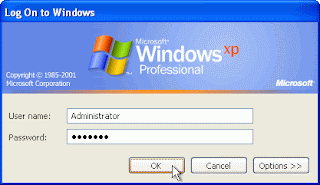 To immediately access and open Log On to Windows traditional and standard login dialog box while on XP Welcome Screen, user can press Ctrl-Alt-Del key sequence twice (same with key sequence for reboot or secure login in NT based Windows). After pressing Ctrl-Alt-Del keys simultaneously twice, Welcome Screen will be changed to logon dialog box with user name and password fields.
To permanently switch to “Log On to Windows” NT styled logon dialog box so that users log on to the computer
without using the Welcome screen, instead of using the graphical Welcome login screen, follow these steps :
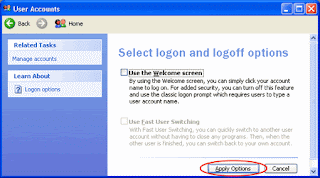
4. Clear the Use the Welcome screen check box.
However, at times, Windows XP users may need to use the more traditional and standard “Log on To Windows” dialog box inherited from Windows NT login screen that allows users to key in user name and password. For example, when want to log on to hidden user account such as Administrator account.
 To immediately access and open Log On to Windows traditional and standard login dialog box while on XP Welcome Screen, user can press Ctrl-Alt-Del key sequence twice (same with key sequence for reboot or secure login in NT based Windows). After pressing Ctrl-Alt-Del keys simultaneously twice, Welcome Screen will be changed to logon dialog box with user name and password fields.
To permanently switch to “Log On to Windows” NT styled logon dialog box so that users log on to the computer
without using the Welcome screen, instead of using the graphical Welcome login screen, follow these steps :
- Log on to Windows XP as Administrator or user with administrative privileges.
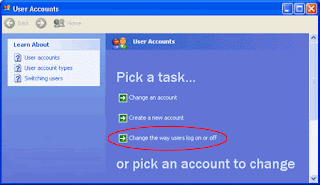
- Open User Accounts in Control Panel by clicking Start, click Control Panel, and then click User Accounts.
- Click Change the way users log on or off.

4. Clear the Use the Welcome screen check box.

- Click Apply Options button.
Note that by turning off and disabing Welcome screen, Fast User Switching feature is no longer available. To revert and switch back to use Welcome screen in XP, simply tick again the “Use the Welcome Screen” check box so that it is checked.
Wednesday, December 24, 2008
How to Encrypt and Protect Privacy Data Stored in Text Files

Are you the one like to use notepad to keep all confidential data such as user id, password, bank account number, credit card number and etc?
If yes, then you are at risk of giving chance to other people or even hackers to steal your personal data.
How do you ensure the data kept in the text file is really secured?
Now, there is a utility, named as Steganos LockNote that is able to encrypt the text file so that your sensitive data is protected from being accessed or stolen by anyone.
Steganos LockNote is free a utility and is able to encrypt your valuable data by using a password and the most advance AES 256bit encryption technology.
To use this utility, no installation is required, just run the executable file and you will see a notepad-like interface.
Type your data here and once you have saved the file, it will prompt you to enter password to encrypt the file.
Another impressive feature is that, if you have any existing text file and would like to encrypt it by using this utility, it doesn’t require you to copy and paste the contents to LockNote interface and save it to another file name.
Instead, what you need to do is just drag the text file and drop it to LockNote interface, then it will detect and ask your permission to convert this file. It is pretty easy and fast to convert any existing text files.
Once the file is encrypted, you will notice that the file is ended with exe extension.
To view or edit the content, just double click the file and it will prompt you to enter password to decrypt the file, enter the password and you will be able to view or edit the file as usual.
Steganos LockNote version 1.0.4 is a tiny utility which consumes only 312 KB.
It is compatible to run with Windows 2000, XP and Vista.
Since it is an executable file and no installation is required, you can copy it to thumb drive and bring it anywhere as you need.
- Download :
Subscribe to:
Posts (Atom)


 Posts
Posts


 Online from 05:00 pm to 07:00 pm GMT ( Leave a message if we are offline )
 since November 2008.


